> ## Documentation Index
> Fetch the complete documentation index at: https://docs.ninjachat.ai/llms.txt
> Use this file to discover all available pages before exploring further.
# Recipes
> Real workflows, no special tools — generate once, then edit and reference.
Everything below composes `create_media`, continuity (`source`), and creative memory (`use`). All images here were made through these exact flows.
## Pick the aspect from the destination
| Going to | Use |
| -------------------------- | -------------- |
| Hero, banner, OG card | `16:9` |
| TikTok, Reels, Story | `9:16` |
| Post, avatar, product tile | `1:1` |
| Poster, portrait | `2:3` or `3:4` |
## Campaign
One product reference keeps the bottle identical across every direction.
> "I'm launching a sparkling yuzu drink called KIYO — give me 4 campaign directions."
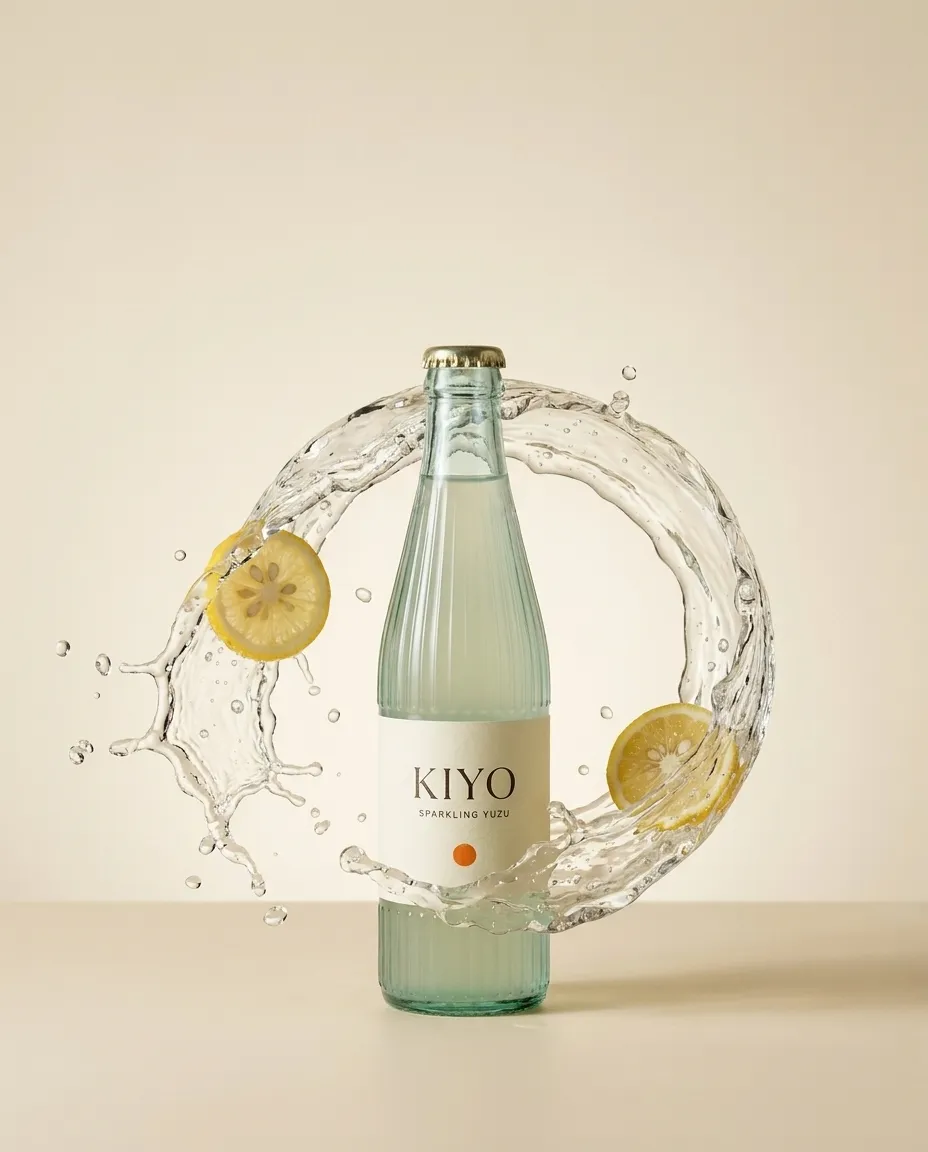
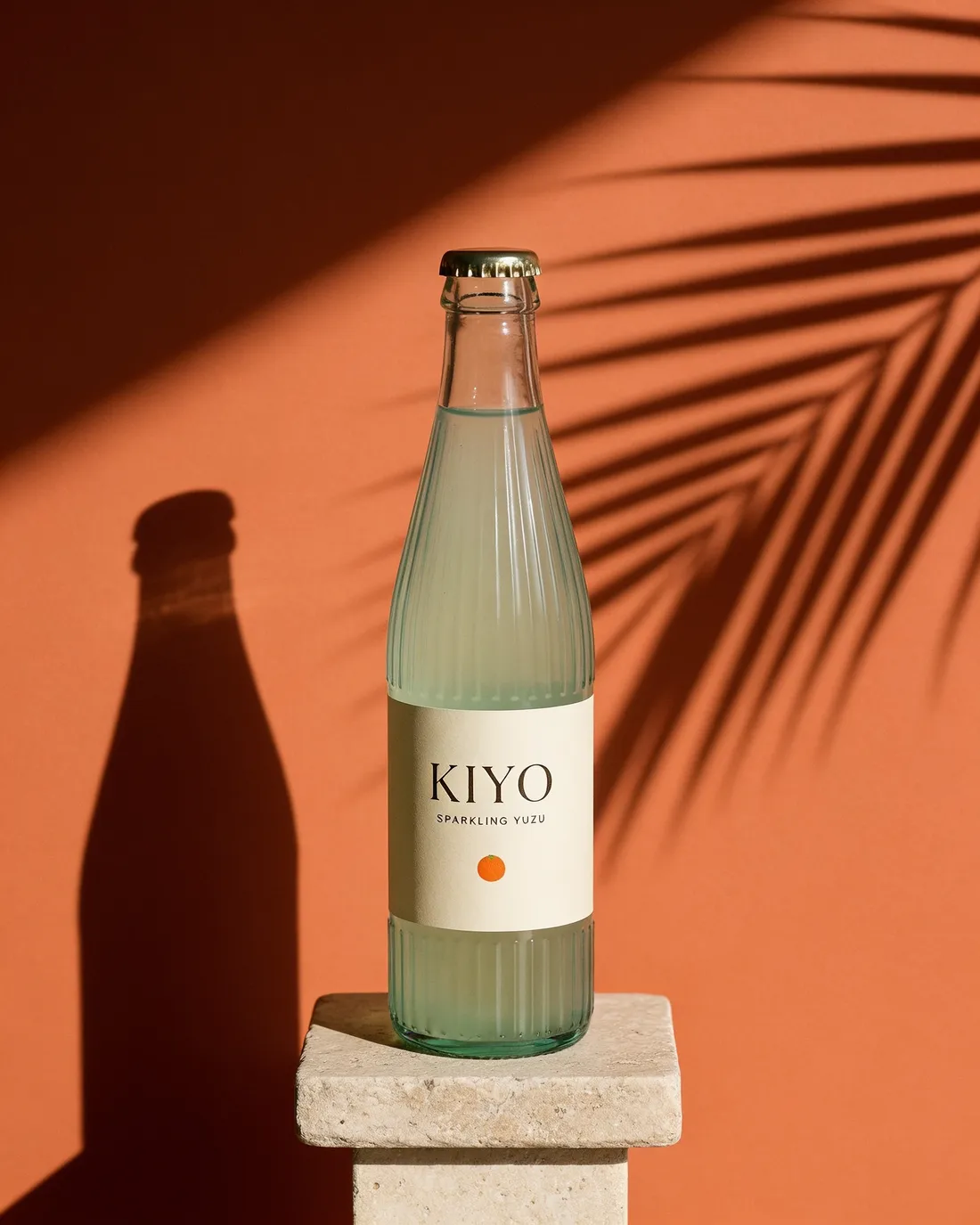
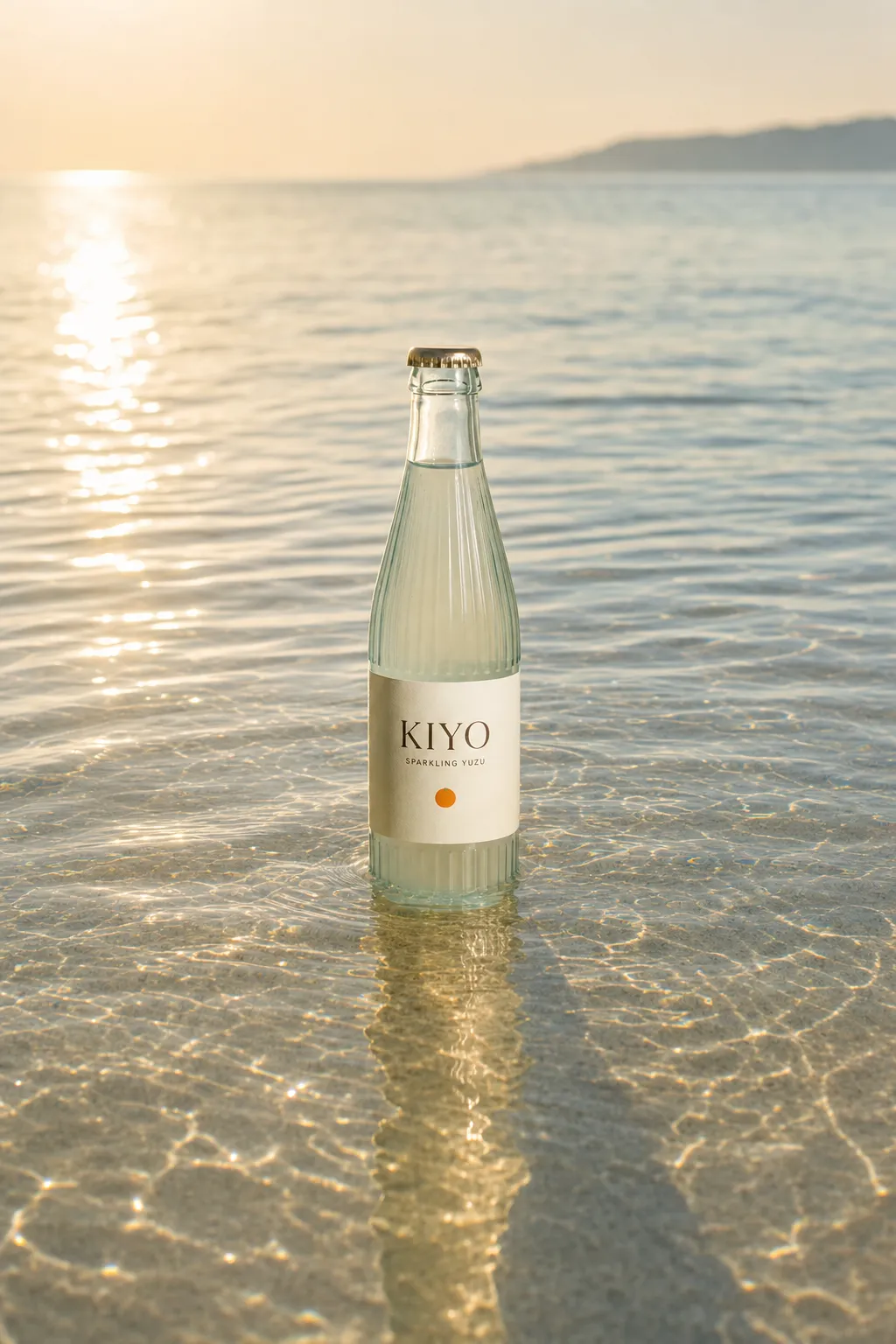
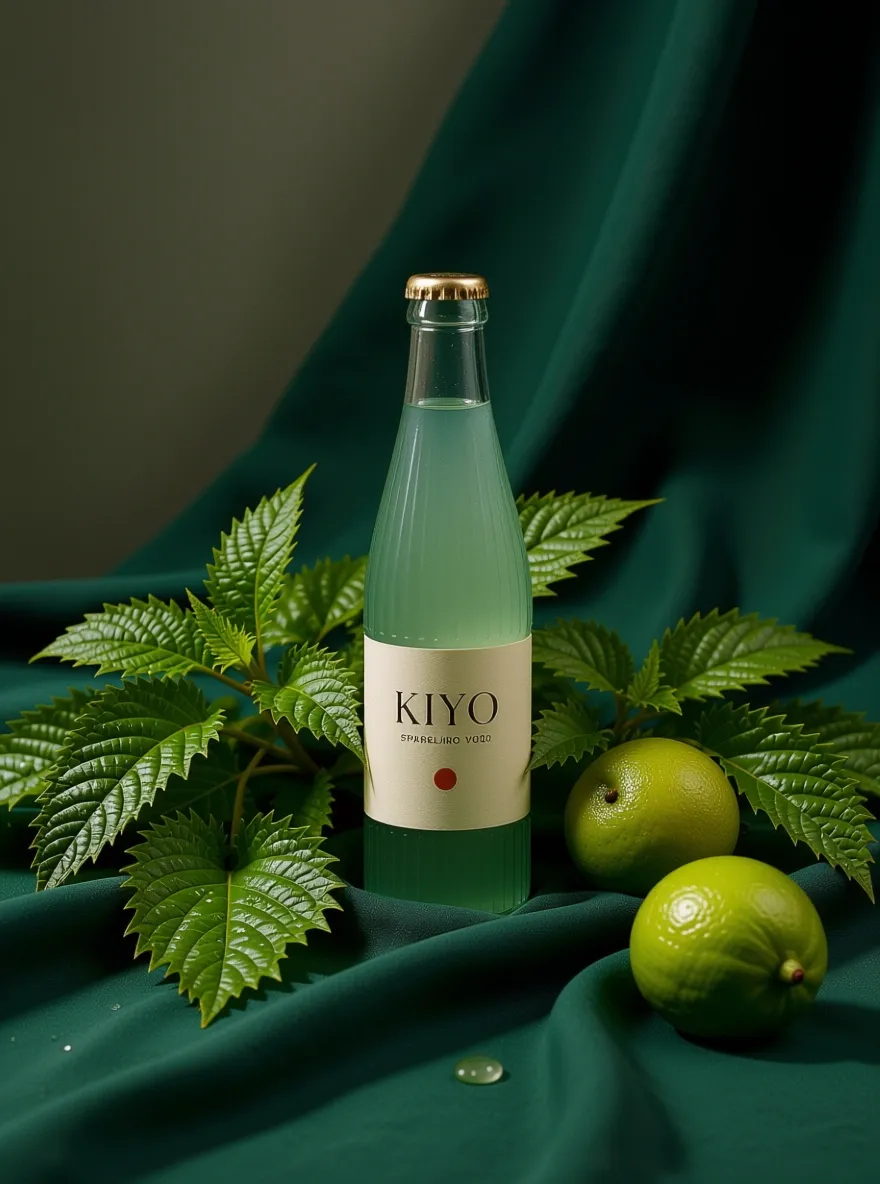 > "The second one. Make it a wide banner."
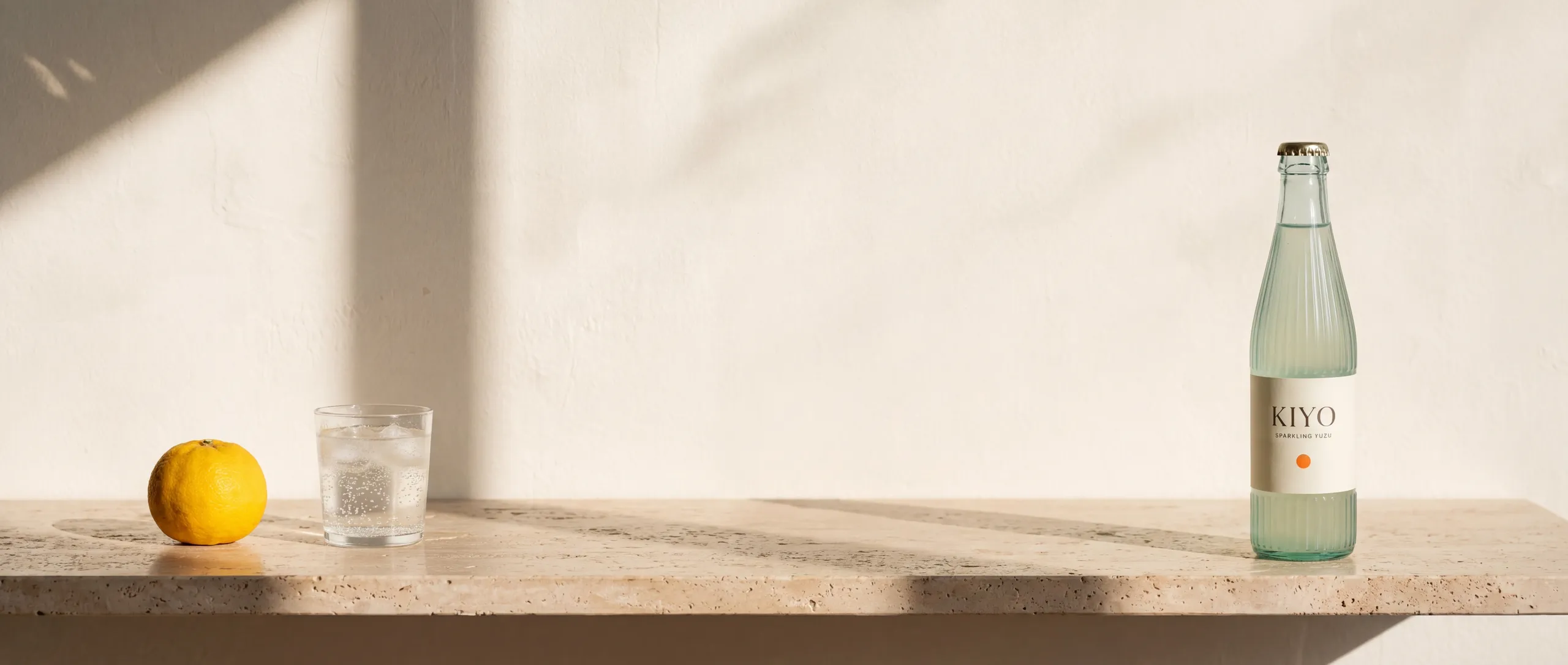 1. Lock the product: `upload_asset` or `reference_image_urls`, "keep packaging unchanged"
2. Four directions: `create_media` `action: "options"` with `max_spend_cents`
3. Winner → placements via edits of the keeper
4. Animate the strongest with `image_to_video`
## Website
1. Lock the product: `upload_asset` or `reference_image_urls`, "keep packaging unchanged"
2. Four directions: `create_media` `action: "options"` with `max_spend_cents`
3. Winner → placements via edits of the keeper
4. Animate the strongest with `image_to_video`
## Website
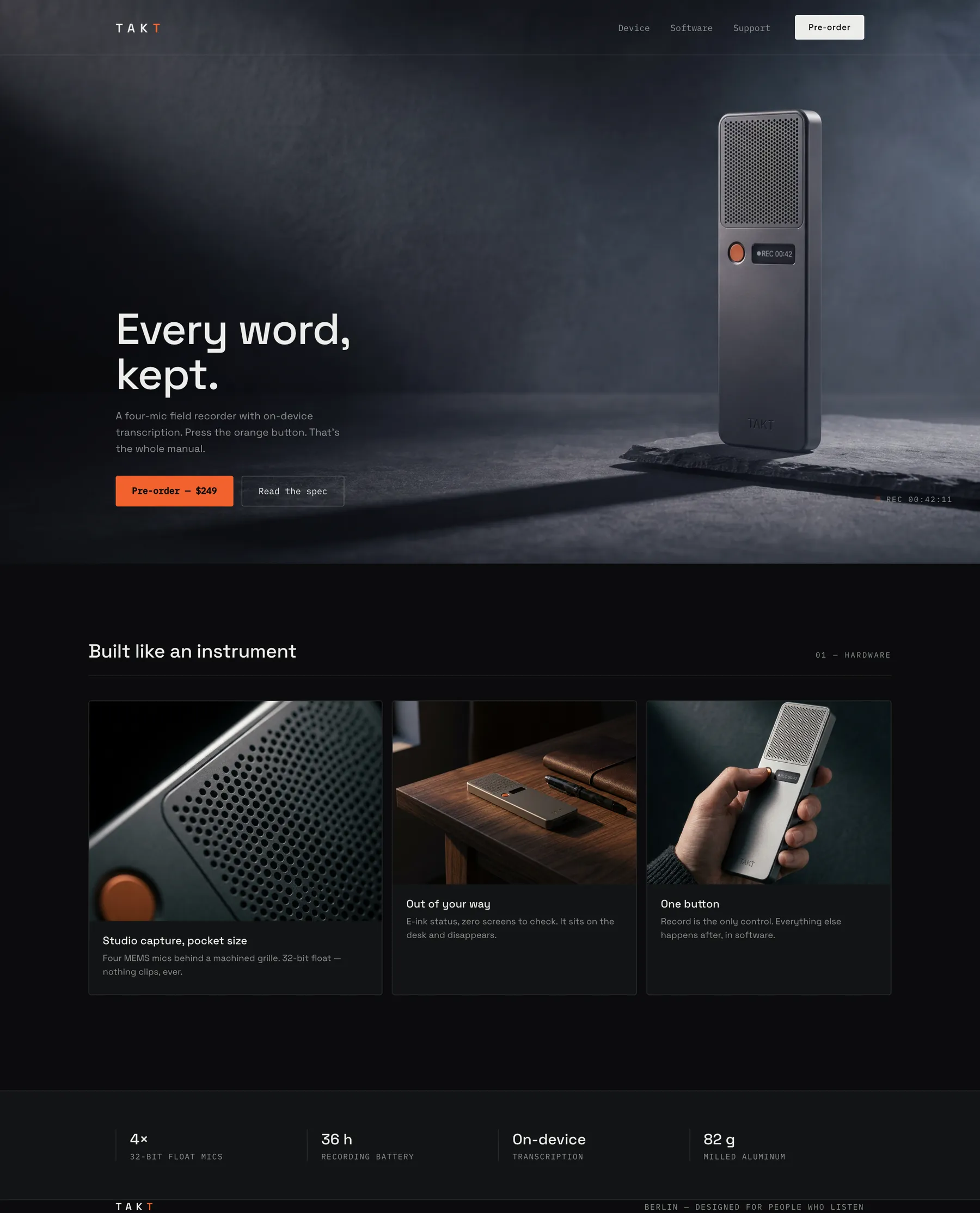 1. Brief → `options` → user picks a direction
2. Hero at `16:9`, continuing from the pick (`source: "2"`)
3. Supporting shots via `source` so the look stays coherent
4. Files land by `filename` — the agent downloads and commits
## Product photography
1. Brief → `options` → user picks a direction
2. Hero at `16:9`, continuing from the pick (`source: "2"`)
3. Supporting shots via `source` so the look stays coherent
4. Files land by `filename` — the agent downloads and commits
## Product photography
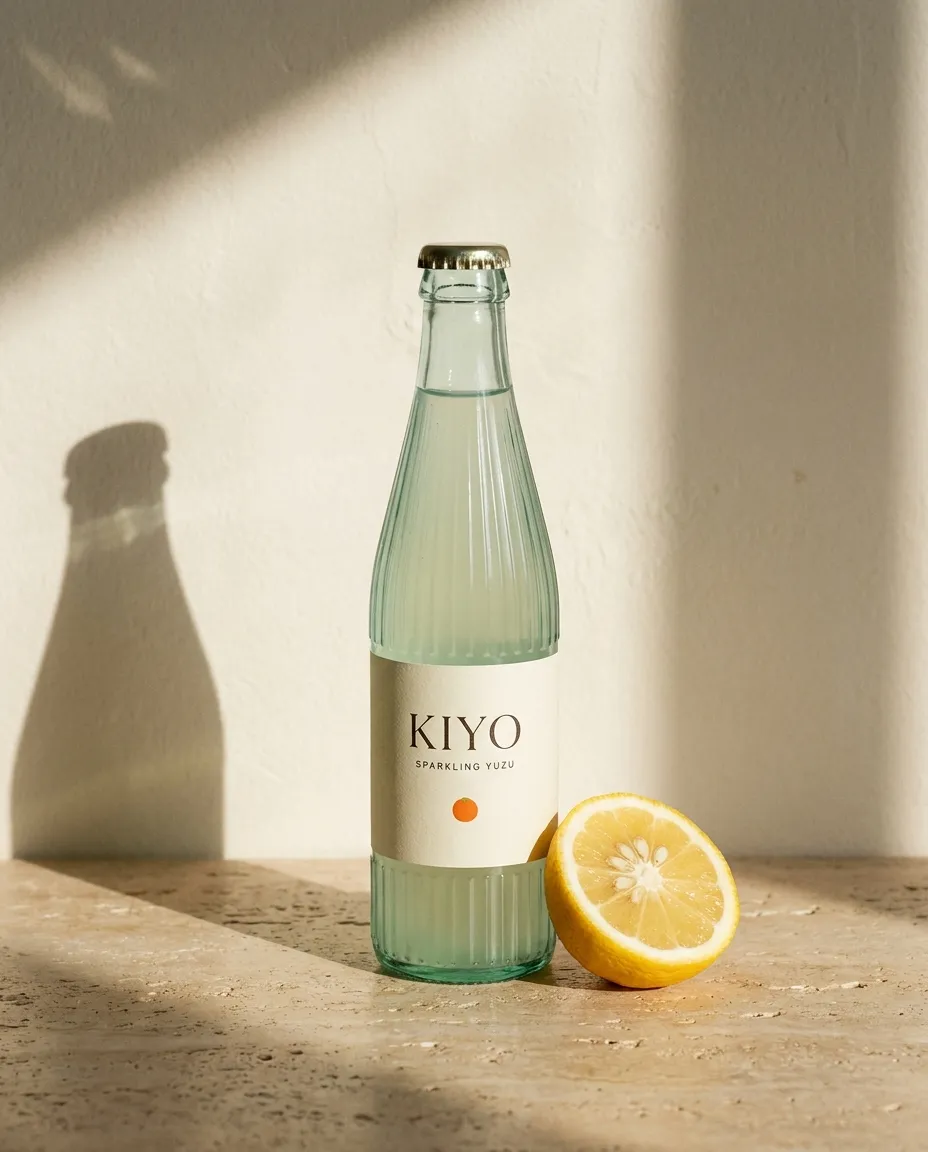 1. Reference the exact product → `save_creation_as` `{type: "product"}`
2. Studio / editorial / lifestyle / outdoor variants with `use: [""]`
## Motion
Reference-locked keyframes first, then film.
1. Reference the exact product → `save_creation_as` `{type: "product"}`
2. Studio / editorial / lifestyle / outdoor variants with `use: [""]`
## Motion
Reference-locked keyframes first, then film.
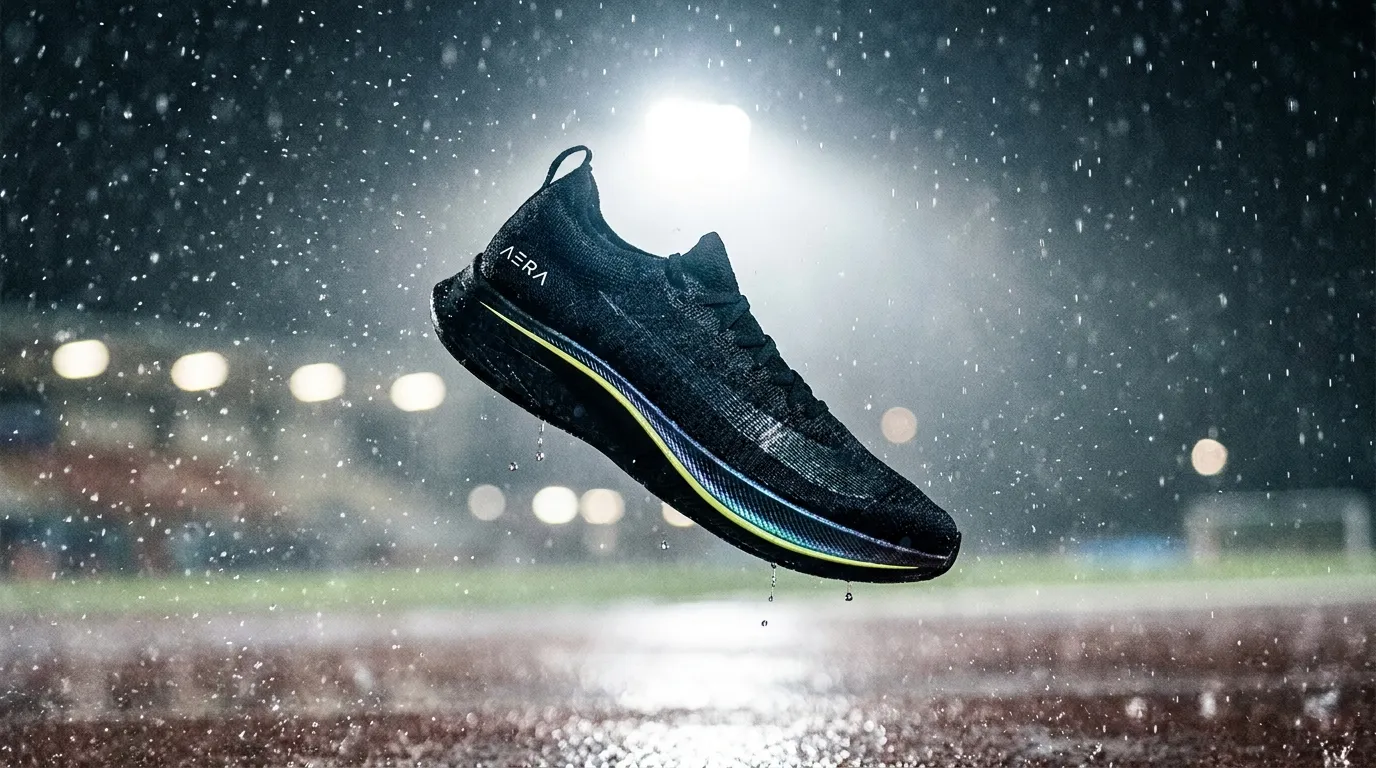
 The one rule: **generate once, then edit and reference.** Continuing from a keeper is cheaper and more consistent than re-prompting from zero.